What to Expect
The Clio Dialogues is not a traditional "tell me about your new book" interview. It is a conversation style podcast that brings historical scholarship to a broader public audience. Our conversation will generally begin with a contemporary question or issue that relates to your book before we explore the history.
Think of the experience less as delivering prepared remarks or chapter-by-chapter summaries and more as having a thoughtful conversation with an interested colleague.
We will not cover your entire book. My philosophy is that it is better to pique the audience's interest and then leave them wanting to read your book.
During the recording, it will be perfectly fine to pause, think, or change direction. Those moments often make for the most engaging conversations.
If you would like to see an example, please check out a previous episode.
A Few Helpful Tips
- There's no need to prepare a formal presentation.
- Feel free to answer naturally rather than try to give "perfect" responses.
- If you'd like to rethink an answer, simply say so. We can pause and start again.
- The conversation is prerecorded and edited, so minor stumbles will disappear in editing.
- I have found that placing the webcam at eye level or even slightly higher produces the most flattering video. If you are using a portable device, this elevation can easily be achieved by stacking a few books under your device.
A Note about Headphones
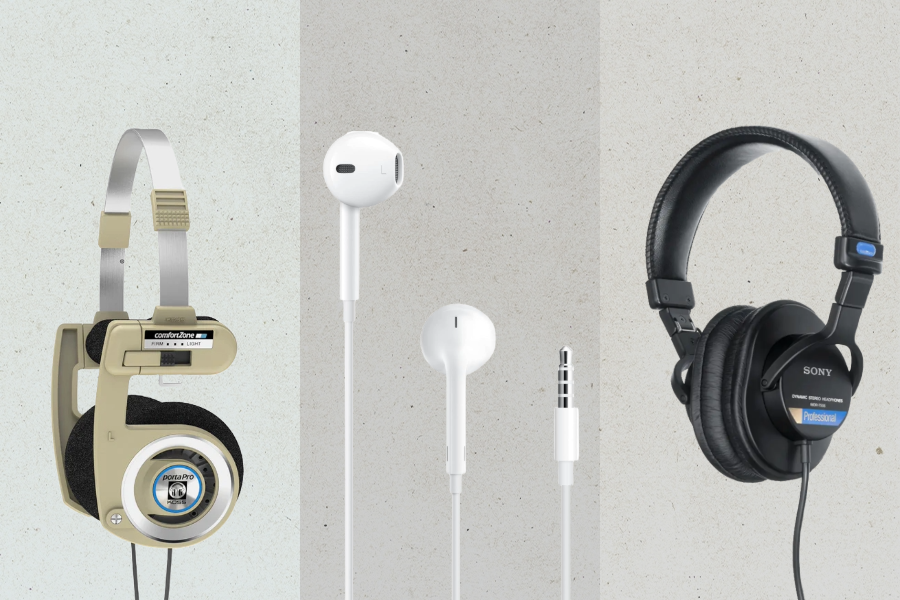 |
|
Joining the studio
- Choose a quiet, well-lit room.
- Be mindful that your IRL (in real life) background will appear in the video version.
- Silence phones and notifications.
- On your computer, close unnecessary programs and browser tabs.
- Join from a laptop or desktop (Chrome, Edge, or Safari). The online recording studio is not compatible with any other brower. Recently, several guests have found that they needed to update their browser version prior to being able to log in to the studio. To save time on recording day, please be sure that your browser is current prior to attempting to log in.
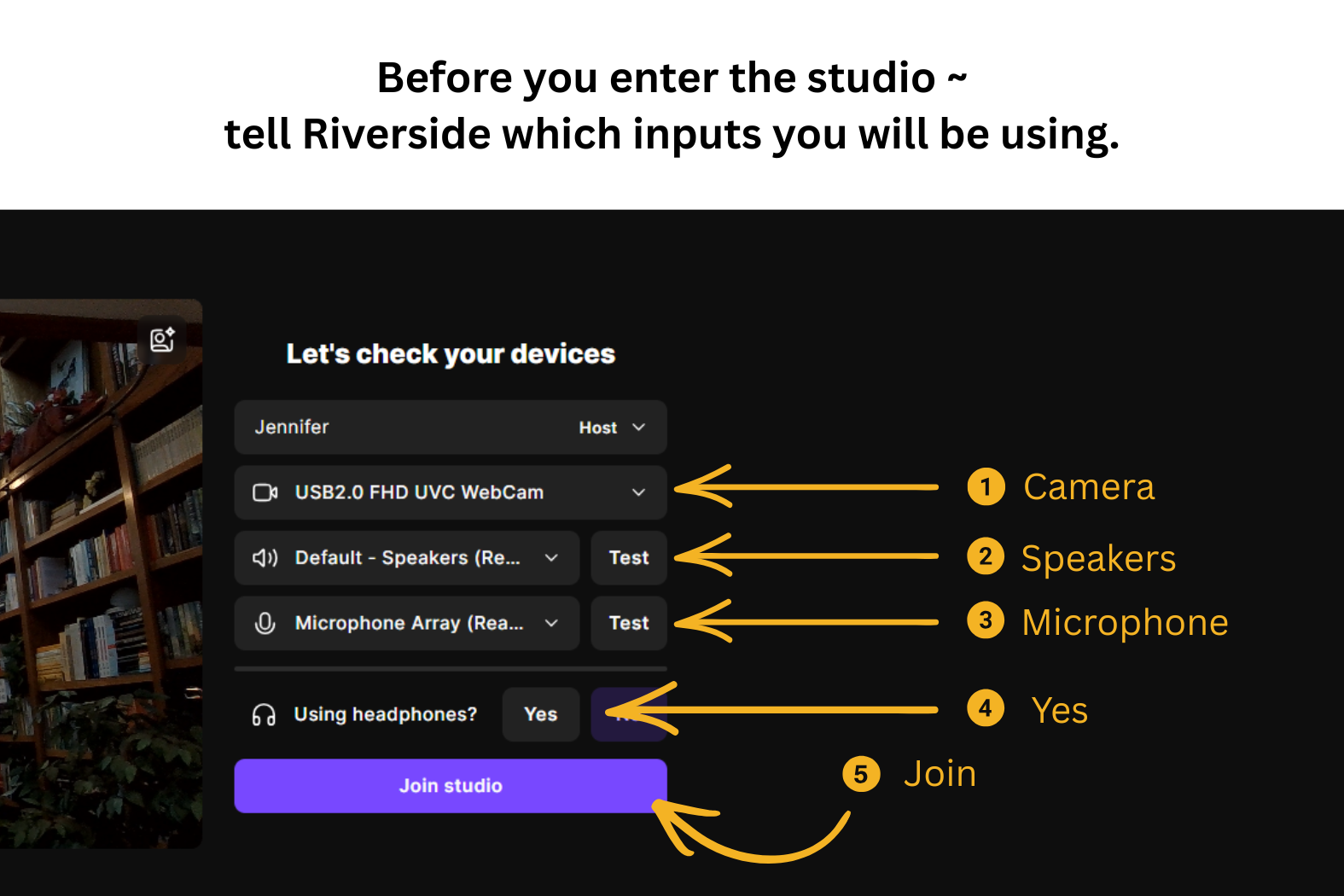
- Then, click the link to the studio and do the following:
|
| 1) Select your camera input. 2) Select your speaker input. Please note, the default option may be your laptop speakers. Do not select laptop speakers. This is where you select the wired earbuds or headphones. 3) Select your microphone. If your wired earbuds have a built-in microphone, select the same input as you selected for #2. If you are using an external webcam that has a microphone, you may select it. If neither external device has a built-in microphone, select the default associated with your computer. Test:
4) Select "Yes" for the prompt "Using headphones?" 5) Click the "Join Studio" button. |
FAQs
What software will we use to record the conversation?
- We will use Riverside, a browser-based recording studio. You can find the link in your appointment confirmation email. For ease of access, I'll send another email with the link a couple hours before we meet.
How long will our meeting last?
- We will meet for approximately one hour. The conversation rarely goes beyond one hour, but please be sure to let me know if you need a hard stop at the end of the scheduled hour. I will be mindful of the time.
What if my internet drops or my image appears fuzzy during recording?
- Riverside captures your recording directly to your device and then gradually uploads the locally captured audio and video tracks to the cloud. The upload will slightly lag behind our conversation. The process typically results in the highest quality recording possible without internet interference. For that reason, it is imperative that your browser remain open for a few minutes after we stop recording so that the buffered footage can be fully uploaded.
- That said -- your image will only be as good as your device's camera is able to capture. So, if you have a choice between devices, you may wish to use the one with the higher quality camera resolution. Alternatively, if you do a lot of online meetings, you may wish to consider investing in an inexpensive webcam that will produce a higher quality video than most laptop cameras. Should you choose to do so, please test the device in advance of our meeting to be sure you are comfortable using it.
In what format will the episode air?
- The episode will air both in audio on podcast platforms and as a video on YouTube.
Will I be able to use a virtual background?
- No. Virtual backgrounds can introduce distracting visual glitches like flickering edges and mysteriously vanishing body parts. Please be mindful of your real life background and what it may convey about you to the video-viewing audience. A bookcase, artwork, or tidy room creates a naturally engaging setting.
What happens if I have a problem while trying to log in?
- I will be monitoring my jenniferrobin@cliodialgues.com email until you are logged in to the studio. If you have any issues, just let me know by replying to one of the emails I've sent you.